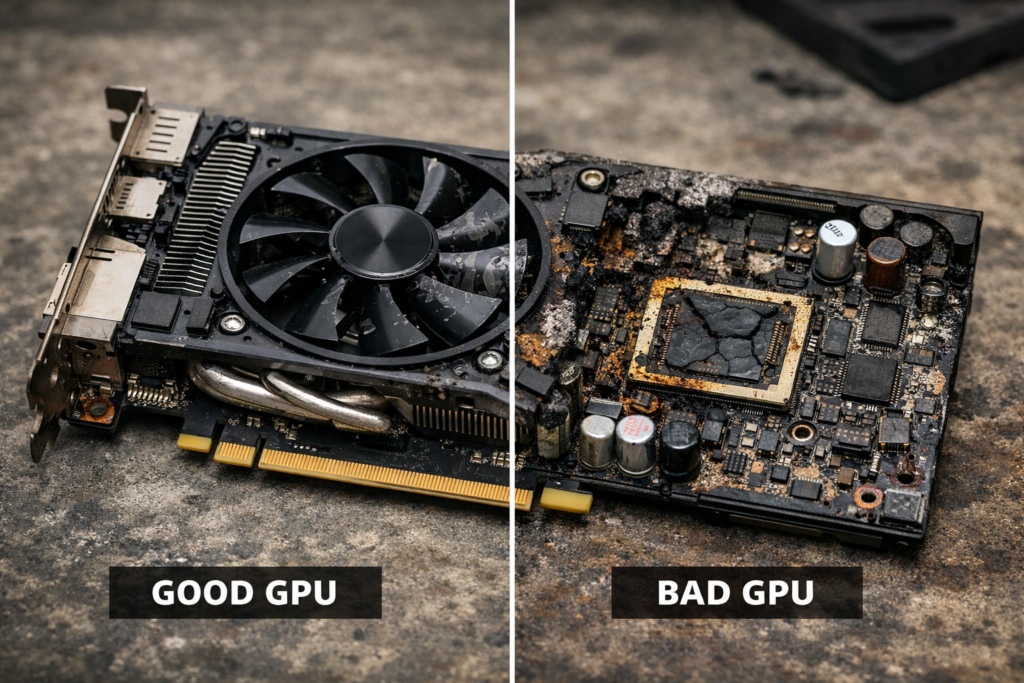

How Can I Tell If My Video Card Is Bad? A Complete Guide for Diagnosing GPU Issues
Your computer’s graphics card, also known as a video card or GPU (Graphics Processing Unit), is responsible for rendering images and videos, enabling smooth performance in both everyday tasks and intensive gaming or creative workloads. When your video card begins to fail, it can lead to frustrating problems including screen artifacts, crashes, and performance drops. But how can you confidently tell if the GPU is the problem?
In this comprehensive guide, we’ll walk you through the most common signs of a failing GPU, diagnostic steps to confirm the issue, and tips on what to do if it turns out your video card is indeed bad.
Why Your Video Card Matters
Before jumping into signs of failure, it’s helpful to understand the role of a video card. Simply put, it handles the creation and manipulation of visual data. Whether you’re a gamer, a video editor, or just browsing the web, the GPU helps make your visual experience seamless, rich, and responsive.
Modern GPUs come with their own memory (VRAM), processors (cores), and cooling mechanisms. Because they’re responsible for such heavy lifting, they’re also one of the more failure-prone components in a PC, especially under high workloads or poor thermal management.
Common Symptoms of a Bad Video Card
How do you know if your GPU is failing? Here are the key warning signs to watch for:
1. Screen Artifacts and Graphical Glitches
One of the most obvious symptoms of a failing video card is visual distortion. This might show up as:
– Random lines or shapes on the screen
– Flickering or flashing images
– Colors displaying incorrectly
– Checkerboard or pixelated patterns
These are called “artifacts” and are usually due to memory or processing errors on the GPU. While sometimes caused by overheating, persistent artifacts are typically a red flag for physical failure.
2. Freezing or Crashing During GPU-Intensive Tasks
If your system consistently crashes or locks up during gaming, video editing, or even while playing HD video, it could be a sign the GPU is getting overwhelmed or throttling due to thermal or electrical issues. Check if the crash always occurs under a workload—if so, the GPU may be struggling.
3. Blue Screens of Death (BSODs)
Frequent BSODs can come from several sources, but if the stop codes relate to display drivers (like VIDEO_TDR_FAILURE), the GPU is a likely culprit. Pay close attention to the error messages for hints.
4. Fan Noise or Overheating
If your GPU’s fan starts making loud noises, becomes erratic, or stops working, it’s a good idea to take a closer look. Inadequate cooling will cause the GPU to overheat, which can decrease performance and lead to long-term damage.
5. Driver Issues or Failed Driver Installations
A bad GPU can sometimes interfere with your system’s ability to install new or updated drivers. If the latest driver installation repeatedly fails, or if your system reverts to a lower graphics mode (like Microsoft Basic Display Adapter), your card may be malfunctioning.
6. No Display or System Boot Failure
When you turn on your computer and receive no signal to the monitor, or your PC doesn’t fully boot, the video card could be dead. Double-check cables and monitor functionality to ensure it’s not another cause.
How to Diagnose a Failing Video Card
1. Try Another Display or Cable
Rule out simple issues first. Try connecting your monitor with a different cable or port. You should also test your GPU with another monitor entirely to confirm that the problem isn’t with your display.
2. Check Device Manager
On a Windows machine:
– Right-click the Start menu
– Choose Device Manager
– Expand the “Display Adapters” section
If the graphics card isn’t listed or has a yellow exclamation mark next to it, Windows is identifying a problem.
3. Monitor Temperatures
Use free software like MSI Afterburner, HWMonitor, or GPU-Z to monitor GPU temperature during idle and under load conditions. Consistent readings above 85–90°C may suggest inadequate cooling or thermal wear.
4. Run GPU Stress Tests
Tools like FurMark, Heaven Benchmark, or 3DMark can stress your video card to identify stability issues or crashes. Be cautious, however—if your GPU is already on its last legs, these tests can push it to failure. Monitor temperatures closely during testing.
5. Test with Another GPU
If you have access to another GPU (or an integrated GPU on your CPU), swap out the suspect card. If the problems go away, it’s strong evidence the original GPU is faulty.
6. Check Event Viewer for System Errors
Windows logs critical system errors in the Event Viewer:
– Go to Start and type “Event Viewer”
– Navigate to Windows Logs > System
– Look for events around the time of crashes or odd GPU-related behavior
You’re looking for repeated errors related to “Display,” “nvlddmkm” (if using NVIDIA drivers), or other GPU-related services.
Can Software Be the Problem?
Absolutely. Before declaring your GPU dead, ensure your drivers and operating system are up to date. Reinstall GPU drivers using a clean install option or utilize DDU (Display Driver Uninstaller) to remove old driver files. Corrupt drivers are often responsible for display issues and might resemble hardware failure.
You should also check for malware or background processes utilizing GPU cycles. Tools like Windows Task Manager or Process Explorer can help identify runaway applications draining GPU resources.
Causes of GPU Failure
Never assume hardware fails “just because.” Knowing the root causes can help you prevent future issues.
– ☑️ Overheating: Poor airflow, dust-covered fans, broken heatsinks, and overclocking can reduce GPU lifespan
– ☑️ Power Surges or Inadequate PSU: A weak or faulty power supply can starve your GPU or deliver erratic voltage
– ☑️ Physical Damage: Bent pins, cracked solder joints, or damage from improper installation
– ☑️ Aging: Just like any electronic component, GPUs degrade over time—particularly if heavily used or stressed
– ☑️ Manufacturing Defects: Some GPUs experience early-life failures due to design flaws or component quality
Should You Repair or Replace a Bad Video Card?
In most cases, replacing a bad video card is the best path forward—especially if it’s out of warranty. Repairing GPUs is delicate, expensive, and often unsuccessful unless done professionally. If your card is still under warranty (most manufacturers offer between 2–3 years), contact the manufacturer or retailer for an RMA replacement.
Prevent Future Failures
– Keep your system cool with quality case ventilation and regular dust cleaning
– Monitor temperatures during gaming or rendering sessions
– Ensure your PSU delivers adequate wattage and is from a reputable brand
– Avoid aggressive overclocking unless you’re confident in thermal limits
– Update drivers and firmware regularly
Final Thoughts
A failing video card is one of the more disruptive hardware issues a PC user can face, but with careful observation and a bit of troubleshooting, you can isolate the problem. Frequent video crashes, visual glitches, driver errors, or BSODs are key symptoms that shouldn’t be ignored.
Take the time to verify issues with diagnostic tools, stress-testing apps, and simple process-of-elimination steps. Whether you end up replacing the GPU or simply cleaning out dust and reinstalling drivers, understanding the issue is your best weapon against future downtime.
Remember: your GPU might be your PC’s most powerful performer—but it also needs care, vigilance, and an occasional check-up to stay in top shape.
Find latest blog post related to technology on our home page.